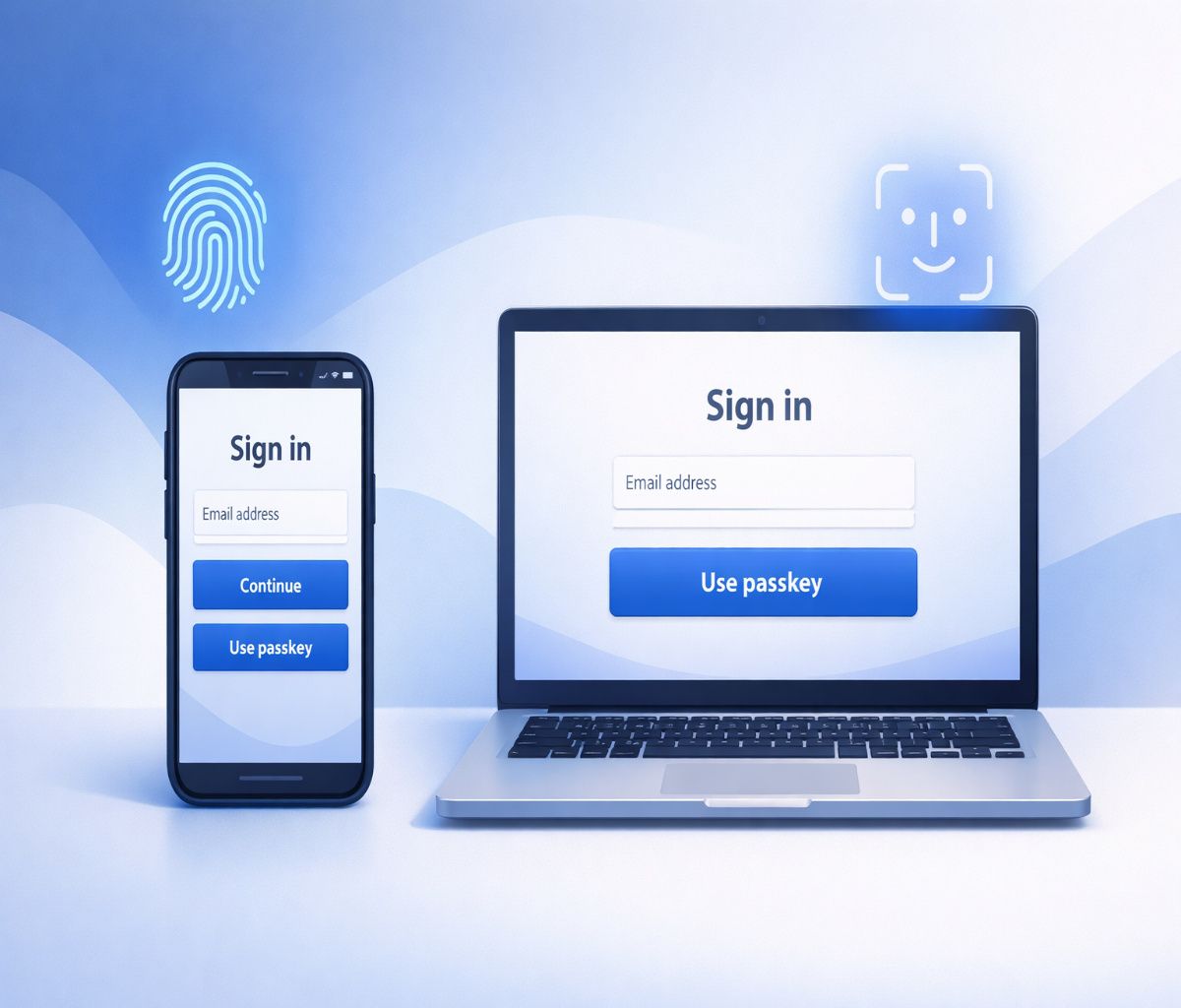

what is a passkey on amazon
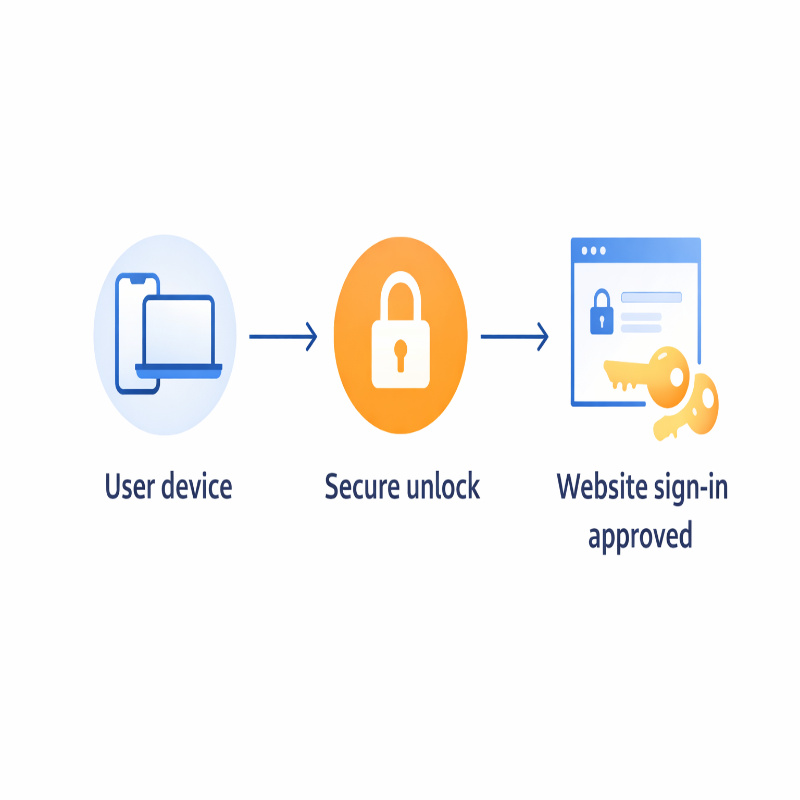
A passkey is a modern authentication credential based on FIDO standards. The important part, for normal humans living normal lives, is that it replaces your password with cryptographic proof: you approve a sign-in with your device, and the device confirms you’re allowed to sign in without you sharing a secret that can be reused somewhere else.
Amazon frames it in a very practical way: a passkey proves you have your device and can unlock it, so you don’t have to remember unique passwords or rely on easy-to-guess information. And because there’s no password to type, it’s harder to accidentally hand your credentials to a convincing fake login page.
One small but helpful distinction: your fingerprint or face scan is not the passkey. It’s the “unlock” step that lets your device use the passkey. I mention this because people sometimes worry that their biometric data is being sent to a website. Passkeys are designed so the website gets a yes/no proof that you unlocked your device, not your fingerprint or face scan itself.
Why passkeys exist (and why Amazon is leaning in)
Passwords have two big problems: people reuse them, and people can be tricked into entering them. That’s not a character flaw; it’s just what happens when security depends on memory, speed, and perfect attention.
Passkeys were created to reduce reliance on passwords while making sign-in feel easier, not harder. The FIDO Alliance describes passkeys as credentials that let you sign in with the same process you use to unlock your device, and it emphasizes that passkeys are phishing-resistant by design.
Amazon’s own rollout messaging is very much in that lane: easier and safer access, with passkeys becoming the default sign-in option on mobile for customers who have set them up. They’ve also extended passkey support beyond shopping, like to Audible, which tells you this is not a one-off experiment.
Passkey vs password vs 2-step verification (2SV)
These terms get tossed around together, and I think that’s why people feel unsure. Here’s a cleaner way to think about it:
- Password: Something you know and type. Convenient, but vulnerable to reuse, phishing, and leaks.
- 2-step verification (2SV): An extra check layered on top of a password (a code, an approval, sometimes a text). It helps, but some versions are still phishable.
- Passkey: A password replacement that uses cryptographic proof from your device, unlocked by your biometric or PIN. It’s designed to resist phishing because there’s no password to hand over.
And a mild reality check, because it keeps expectations sane: even if you use a passkey, you might still see additional security checks sometimes. That doesn’t mean passkeys “didn’t work.” It usually means Amazon is being cautious about unusual sign-ins or higher-risk changes.
What you need before you turn it on
Passkeys feel effortless when everything is set up properly. When they aren’t, you get that vague, irritating sense that your device is withholding information from you. So, before you create one, check these basics:
- Your device has a screen lock enabled (PIN, fingerprint, Face ID, etc.), because you’ll use that to approve sign-in.
- You’re signed in on the device you actually want to use most often (usually your phone).
- Your browser and operating system are reasonably up to date, because passkey support lives in the OS and browser layer.
I’d also add one “soft” requirement: decide how you want your passkeys to be available across devices. FIDO explains that passkeys can be securely synced across a user’s devices (synced passkeys) or bound to a specific device (device-bound passkeys). That difference matters when you buy a new phone or switch between ecosystems.
If you want the hands-on version with device-by-device tips, you can jump to our walkthrough on how to set up an Amazon passkey and then come back here for the “how it works, what can go wrong, and how to recover” parts.
How to set up a passkey on Amazon (the official path)
Amazon says you can enroll for passkeys in a few simple steps from either a browser or the Amazon Shopping app. The path is straightforward once you know where to look, and it’s the same general place you’d go for other account security settings.
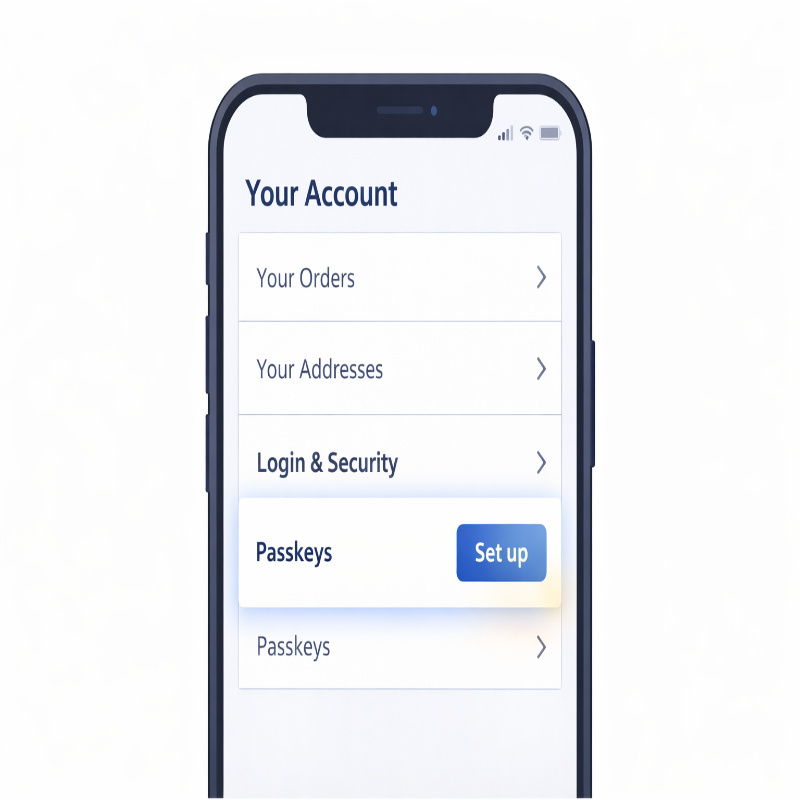
- Open Amazon (web or app) and go to Your Account.
- Select Login & Security.
- Select Set up next to Passkeys.
- Follow the prompts to create and save the passkey, then confirm using your device’s biometric or lock-screen PIN.
After that, the “feel” of signing in changes. It becomes less like proving you remember something and more like confirming you’re present with a device you control. Amazon describes this as signing in the same way you unlock your device, and that’s exactly what it feels like in practice.
what is a passkey on amazon setup, really?
Here’s the part people don’t say out loud: passkey setup is not just an Amazon setting. It’s also a decision about where your passkey will live and how it will show up again later.
FIDO calls this role a “passkey provider,” which could be your operating system’s built-in credential manager or a third-party provider. In normal life, this explains why two people can follow the same steps and still have different experiences on their next device.
What signing in looks like afterward (and why it’s calmer)
Once you’ve created a passkey, your default sign-in can be as simple as: tap “sign in,” approve with Face ID or fingerprint, done. No typing. No “reset password” loop. No worry about whether you’re on a fake page that’s trying to harvest your credentials.
FIDO also describes “cross-device authentication,” where you can sign in on one device using a passkey that lives on another device—often through a QR code flow that confirms physical proximity. If you’ve ever signed in on a laptop and scanned a QR code with your phone to approve it, that’s the general idea.
This is also why passkeys can feel a bit “magical” at first. They’re not. They’re just shifting the trust from “I typed the right secret” to “I’m holding the right device and unlocked it.”
Are Amazon passkeys actually safer, or just newer?
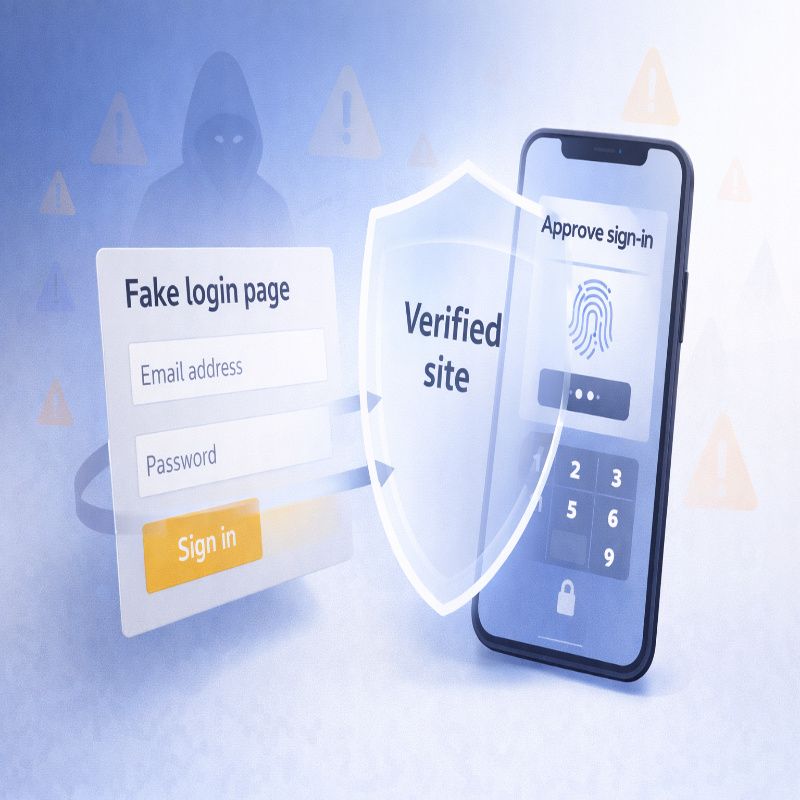
They’re safer in the ways that matter most for consumer accounts. Amazon explicitly says passkeys are less susceptible to phishing attacks than passwords and one-time codes in text messages. FIDO goes further and describes passkeys as phishing-resistant and secure by design, reducing risks like phishing and credential stuffing because there are no passwords to steal.
But, yes, there’s a nuance: passkeys don’t erase scams from the planet. A determined scammer can still try to trick someone into approving a sign-in they didn’t initiate. The difference is that the attacker can’t simply collect your password and reuse it later; they’d need your active involvement and your device in the moment.
If you’re the kind of person who likes a clear rule: passkeys reduce the risk of “quiet, invisible” account takeovers. They do not replace being thoughtful about prompts you approve.
Using passkeys across devices (how to avoid future frustration)
Most people don’t think about “future you” when they enable a security feature. Future you, however, will eventually get a new phone, a new laptop, or both. So let’s talk about the real question: will your Amazon passkey be there when you need it?
FIDO explains that passkeys can be securely synced across your devices using the same passkey provider, which is what makes it possible for passkeys to be available on a new device after you set it up with that provider. This syncing is a big reason passkeys can realistically replace passwords for everyday use.
My practical advice is slightly boring, but I stand by it: try to have passkey access on more than one device you control. If your phone is your primary, consider making sure your laptop (or a second phone/tablet) can also use your passkeys. It’s not a requirement, but it’s a comfort.
If you want a deeper, step-by-step setup that accounts for these “new device” moments, our Amazon passkey setup guide gets specific without getting too technical.
Troubleshooting: when the passkey option is missing
If passkeys are so modern and clean, why do they sometimes feel messy? Usually because passkeys depend on a chain of support: your OS, your browser, your device security settings, and the app or site. If one link is weak, the feature can disappear or behave differently than you expect.
Here are a few “first fixes” that solve a surprising number of problems:
- Update your browser and OS, then restart the device (annoying advice, but it works often enough).
- Try setting it up in the Amazon Shopping app instead of the browser, or vice versa, because availability can differ by environment.
- Confirm your device has a lock-screen method enabled, since passkeys rely on it.
If you’re already stuck and want a tighter checklist, our troubleshooting post on Amazon passkey not working goes through the most common failure patterns and the fastest ways out.
Recovery: lost phone, new phone, or “I switched everything”
This is the part people quietly worry about. What happens if you lose the phone that holds your passkey?
First, don’t panic. In most real-world cases, you can still sign in using another method, then create a new passkey. Amazon itself notes that passwords will still be around in the foreseeable future, which is essentially an acknowledgement that account recovery and alternate sign-in methods still matter.
Second, understand the difference between synced and device-bound passkeys. FIDO notes that synced passkeys can be available across your devices, while device-bound passkeys never leave a single device. This is why one person can lose a phone and be fine (their passkeys sync), while someone else loses a phone and has to recover their account first (their passkey was only on that device).
If you want a realistic playbook for the most common situations—lost device, replacement phone, or switching between ecosystems—bookmark our Amazon passkey recovery guide. It’s written for the moment when you’re stressed and just want the next step, not a lecture.
How to remove a passkey from Amazon (and when you should)
You can remove passkeys from your Amazon account settings the same way you add them—through the Login & Security area. Amazon’s instructions for enrolling place passkeys right there (Your Account → Login & Security → Passkeys), which is also where you’d normally manage or delete them later.
When should you remove one? A few situations are pretty reasonable:
- You lost a device and want to reduce exposure, even if it was locked.
- You sold or gave away a device and want to be extra cautious.
- You tested passkeys on multiple devices and now want a cleaner list.
One gentle warning, because people do this at the worst possible time: don’t remove your last working sign-in method until you’ve confirmed another one works. Security housekeeping is good. Accidental lockouts are not.
So, should you enable it?
If you shop on Amazon regularly, enabling a passkey is one of the few security upgrades that also improves your daily experience. Amazon’s message is that passkeys are both easier and more secure—sign in the same way you unlock your device, and reduce susceptibility to phishing compared with passwords and SMS one-time codes.
I do think there’s one exception where you may want to move slowly: if you have only one device you ever use, and you’re not sure whether your passkeys are synced anywhere. In that case, set up the passkey, but also take five extra minutes to confirm your recovery options are current and that you know how you’d sign in if you lost that device.
Conclusion: what is a passkey on amazon?
What is a passkey on amazon, at its core? It’s a password replacement that uses FIDO-based cryptographic credentials so you can sign in by unlocking a device you control, rather than typing a password that can be phished or reused. If you want a safer, calmer login—and you’re willing to think briefly about recovery—turning on an Amazon passkey is a very practical step forward.