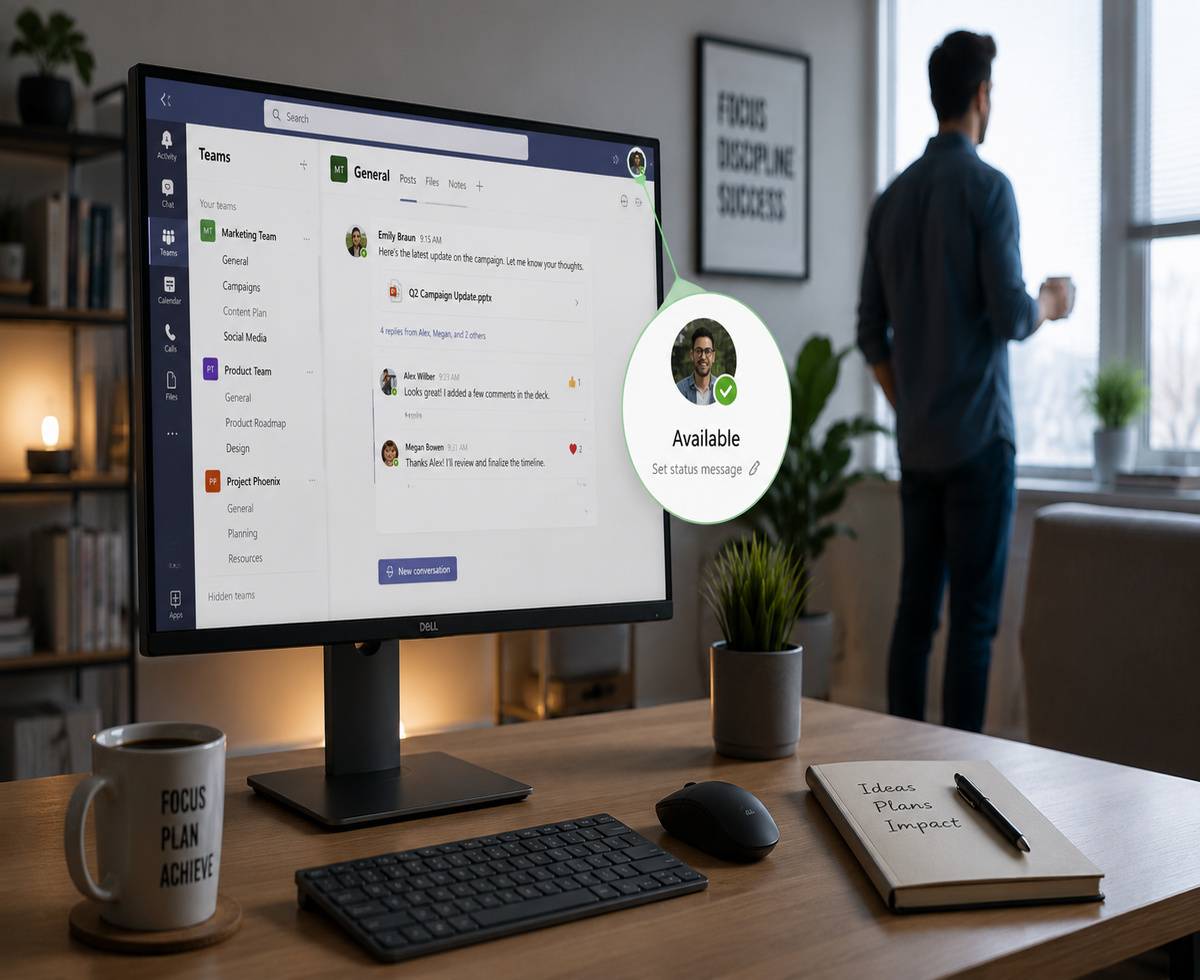

Microsoft Teams is designed to reflect your availability automatically. When your status shows as green, it means you’re available. But in reality, that status can change a bit too quickly.
If you stop moving your mouse or typing for a few minutes, Teams often switches your status to “Away.” This can happen even when you’re still working — reading a document, thinking through a task, or using another app.
It’s a small detail, but it can create confusion. Colleagues may assume you’re unavailable when you’re actually right there.
In this guide, we’ll go through simple, practical ways to keep your Teams status green when you’re not actively using it. Nothing overly technical — just methods that work in real-world situations, along with a clear explanation of their limitations.
What Does the Green Status in Teams Actually Mean?
In Microsoft Teams, the green status indicator means “Available.” It signals to others that you’re online and ready to respond.
This status is not something you fully control. Teams updates it automatically based on your activity. It looks at things like keyboard input, mouse movement, and whether the app is actively being used.
Here’s a quick breakdown of common status indicators:
- Available (Green): You’re active and using your device
- Away (Yellow): No activity detected for a short period
- Busy / Do Not Disturb: You’re working but prefer not to be interrupted
It’s worth noting that this system isn’t always accurate. You can be fully engaged in work — reading, thinking, or attending to something off-screen — and still appear as “Away.”
So in practice, your Teams status reflects activity, not necessarily productivity.
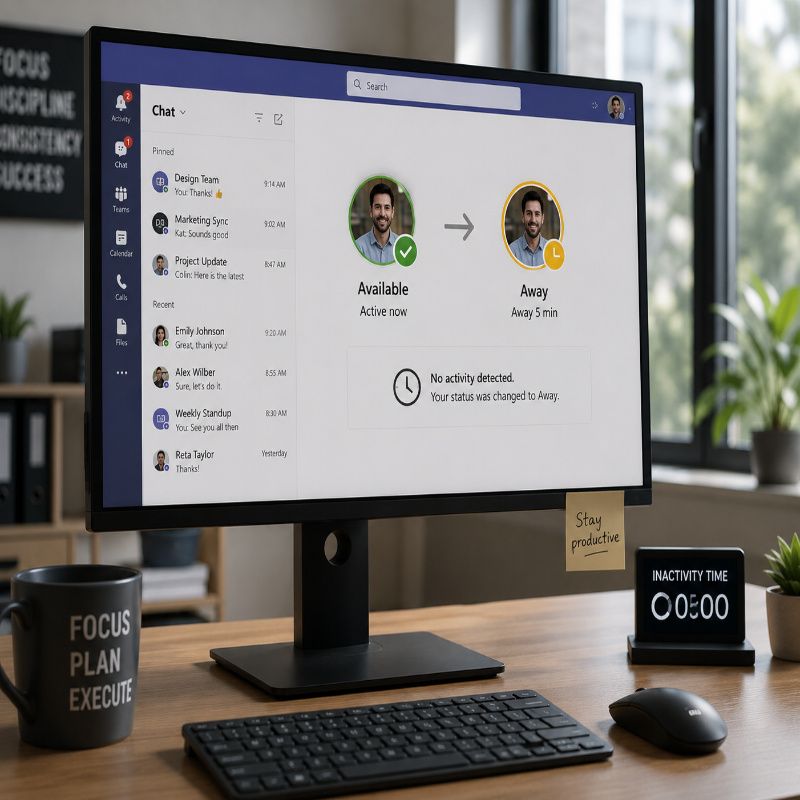
Why Teams Keeps Changing Your Status to Away
If your status keeps switching to “Away,” it’s usually because Teams hasn’t detected any recent activity.
By default, Microsoft Teams uses a short inactivity window. In many cases, this is around five minutes. If there’s no mouse movement or keyboard input during that time, your status changes automatically.
There are a few common triggers behind this:
- No keyboard or mouse activity
- Your screen locks or goes to sleep
- Your system enters a power-saving mode
- Teams is running in the background without interaction
There are also some less obvious factors. For example, if you’re logged into Teams on multiple devices, your status can be influenced by inactivity on one of them. Similarly, certain system settings — like aggressive sleep timers — can speed up the switch to “Away.”
The key thing to understand is this: Teams relies heavily on system-level activity. If your device appears idle, your status will likely follow.
Method 1: Manually Set Your Status (Simple but Limited)
The quickest way to control your status is to set it manually.
You can do this by clicking your profile icon in Microsoft Teams and selecting “Available.” This tells Teams to display your status as active, regardless of recent activity.
However, this method has a limitation. It doesn’t override inactivity detection for long. If your system remains idle, Teams may still switch your status back to “Away.”
So while this works for short periods — like stepping away briefly or correcting your status — it’s not a long-term solution.
Think of it as a quick fix rather than something you can rely on throughout the day.
Method 2: Use a Status Duration Setting (More Reliable)
A more effective option is to use the “Duration” feature in Microsoft Teams.
This allows you to set your status for a specific period of time, rather than letting it change automatically right away.
Here’s how it works:
- Click your profile icon
- Select your current status
- Choose “Duration”
- Set your status to “Available”
- Select how long you want it to stay active (for example, 1 to 8 hours)
This method is more reliable than manually setting your status once. It gives you a defined window where Teams is less likely to switch you to “Away” too quickly.
That said, it’s still not completely foolproof. If your computer goes idle or enters sleep mode, Teams may still update your status.
In most cases, this method works best when combined with basic system settings — which we’ll cover next.
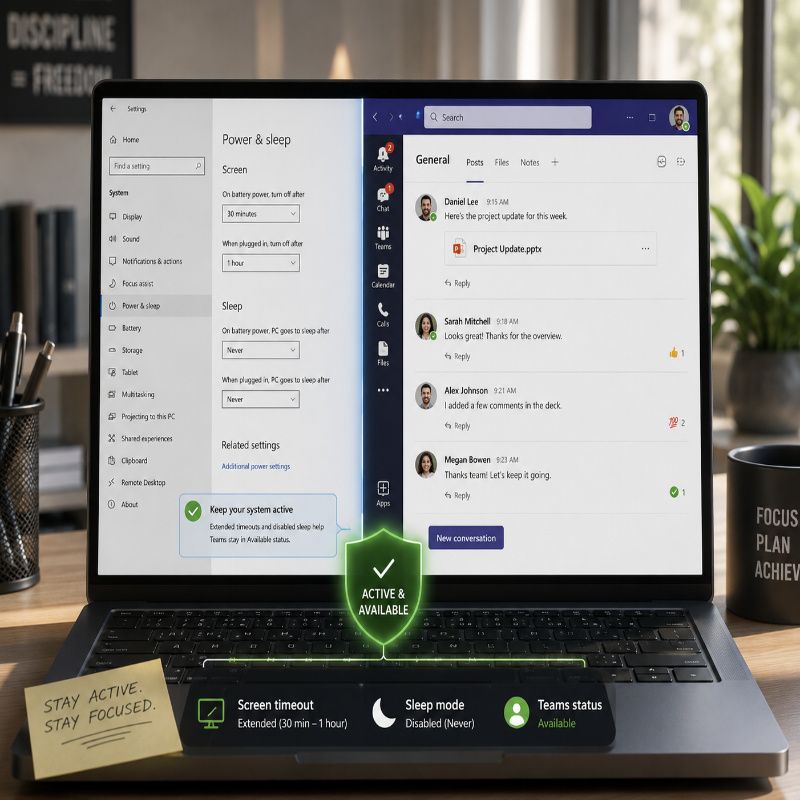
Method 3: Prevent Your Computer from Going Idle (Very Effective)
One of the most reliable ways to keep your Teams status green is to prevent your computer from going idle in the first place.
Since Microsoft Teams depends heavily on system activity, your status is directly affected by your device’s power and sleep settings. If your screen turns off or your system goes to sleep, Teams will almost always switch your status to “Away.”
You can reduce this by adjusting your system settings:
- Increase screen timeout duration
- Disable or extend sleep mode while plugged in
- Turn off aggressive power-saving features during work hours
On Windows, this can be done through Power & Sleep settings. On macOS, similar controls are available under Energy Saver or Battery settings.
The idea is simple — keep your system “awake,” and Teams is more likely to keep you marked as available.
Of course, there’s a trade-off. Keeping your device active for longer periods can use more power, especially on laptops. So it’s worth adjusting these settings in a way that fits your workflow, rather than leaving everything permanently disabled.
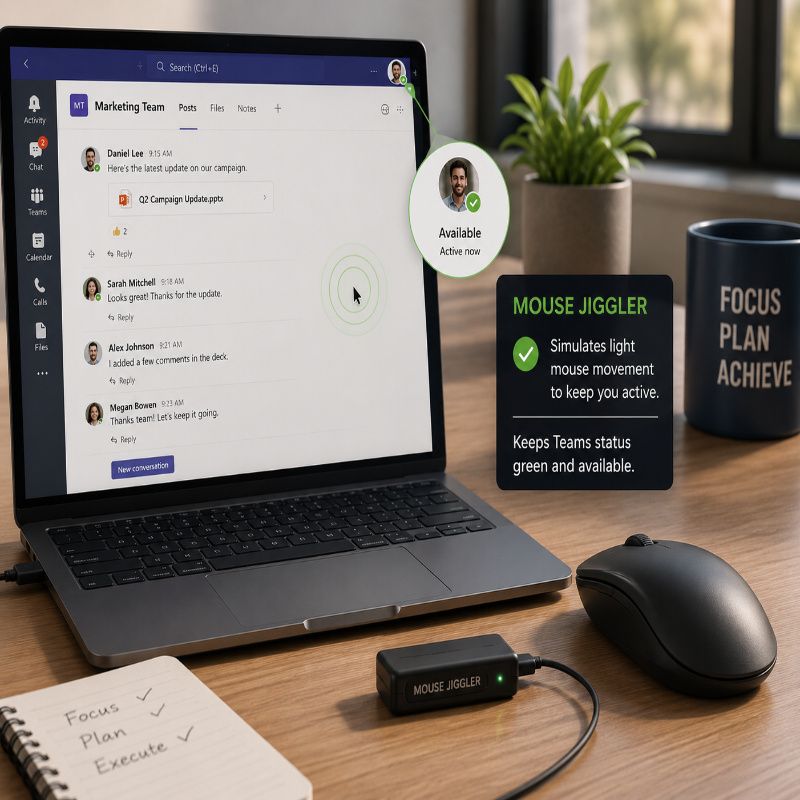
Method 4: Use a Mouse Jiggler or Activity Tool (Common Workaround)
Another commonly used method is a mouse jiggler — a tool that simulates small movements on your screen to prevent your system from appearing idle.
These tools come in two main forms:
- Hardware devices: Small USB tools that physically simulate mouse movement
- Software apps: Programs that create virtual input activity
Because Teams relies on detecting activity, even slight movement can be enough to keep your status green.
This is why mouse jigglers are often seen as a simple and effective workaround. Once running, they can keep your system active without requiring constant manual input.
However, it’s important to approach this carefully. Some workplaces have policies around monitoring activity or installing third-party tools. In those environments, using such tools may not be appropriate.
So while this method can work well technically, it’s best used with awareness of your company’s guidelines.
Method 5: Use a Secondary Device (Subtle but Practical)
If you use Microsoft Teams on more than one device, you can take advantage of that setup.
For example, keeping Teams open on your phone or tablet while you’re working elsewhere can help maintain your active status — especially if there’s occasional interaction.
This doesn’t require any special tools. Just opening the app and checking messages periodically can be enough to keep your status from switching too quickly.
This method works well in situations where you’re moving around, multitasking, or stepping away from your main computer for short periods.
That said, it’s not completely automatic. You still need some level of interaction, even if it’s minimal.
Method 6: Use Background Activity (Indirect Method)
Another approach is to keep your system busy with background activity.
This could include things like:
- Playing a long video
- Running a slideshow presentation
- Keeping an app active in the foreground
In some cases, this prevents your system from entering an idle state, which can help keep your Teams status active.
However, this method is less consistent. Some systems still detect inactivity if there’s no direct user input, even if something is running on screen.
Because of that, it’s better treated as a supporting method rather than a primary solution.
What Not to Rely On (Important Reality Check)
It’s easy to assume there’s a simple setting that can keep your Teams status green all the time. In reality, there isn’t a perfect “set and forget” solution.
Even when you manually set your status or use duration settings, Teams still relies on activity signals from your system. If those signals stop, your status will eventually change.
Some common assumptions don’t hold up well:
- Manually setting status will keep it active all day
- One simple trick can override Teams completely
- Background apps always prevent inactivity detection
Microsoft designed Teams to reflect real-time activity as closely as possible. That means most workarounds have limits.
The goal isn’t to find a perfect hack, but to use a combination of practical methods that reduce unnecessary status changes.
Best Practical Combination (Recommended Approach)
If you’re looking for a reliable way to keep your Teams status green, the most effective approach is to combine a few simple methods rather than relying on just one.
Each method on its own has limitations. But together, they can significantly reduce how often your status switches to “Away.”
A practical setup might look like this:
- Set your status to “Available” with a defined duration
- Adjust your system’s sleep and screen timeout settings
- Interact with your device occasionally, even if lightly
This combination works because it aligns both Teams settings and system behavior. Your device stays active, and Teams is less likely to interpret inactivity too quickly.
If needed, you can layer in additional methods — like using a secondary device or background activity — but for most people, the basics are enough.
The key is balance. You don’t need a complex setup, just a few small adjustments that fit naturally into your workflow.
A Quick Note on Workplace Transparency
While it’s useful to understand how Teams status works, it’s also worth keeping the bigger picture in mind.
Your availability indicator is only one part of how you communicate with your team. In many cases, a quick message or clear expectation can be more effective than relying on status alone.
For example, if you’re stepping away or focusing on deep work, setting a short status message can provide better context than simply staying “green.”
This isn’t about trying to outsmart the system. It’s about using it in a way that supports clear communication and realistic work habits.
Over time, that tends to build more trust than any workaround ever could.
Conclusion
Keeping your Teams status green isn’t as straightforward as it might seem. The platform is designed to reflect activity, and it does that quite aggressively.
The good news is that you can manage it with a few practical adjustments. Using status duration, tweaking your system settings, and maintaining light interaction can make a noticeable difference.
There’s no perfect, permanent solution — and that’s by design. But with the right combination of methods, you can keep your status more consistent without overthinking it.
In the end, it’s less about forcing a green status and more about making the system work better for how you actually use your time.