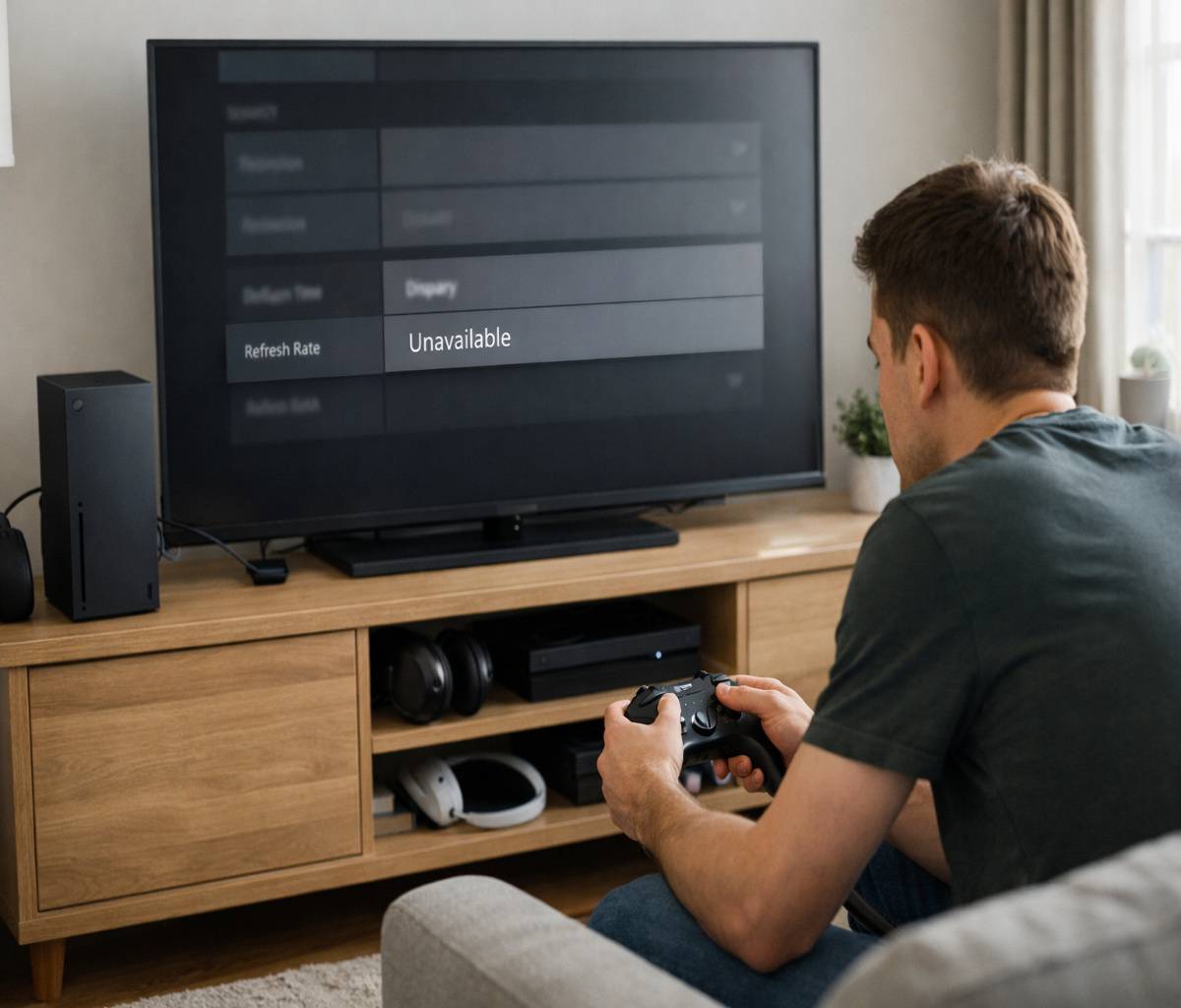

If your Xbox Series X says it can do 120Hz, your TV or monitor says it supports 120Hz, and yet the option still refuses to appear, I get the frustration. It feels like one of those problems that should be simple, but somehow turns into a whole evening of menus, cable swapping, and second-guessing everything.
This guide is for that exact problem: Xbox Series X 120Hz not showing. We’re going to work through the most common causes in the right order, without overcomplicating it. Some fixes take thirty seconds. Others are a bit annoying. But if you go step by step, you’ll usually find the bottleneck pretty quickly.
If you want the full setup beyond just this one issue, including VRR, FPS Boost, controller tuning, and audio, you should also keep our pillar guide handy: How to Set Up Xbox Series X for FPS Games. This article is more focused. Think of it as the troubleshooting branch of that larger setup guide.
Why 120Hz doesn’t show up in the first place
Most of the time, the issue is not the console itself. It’s usually one of these:
- The display supports 120Hz, but not over the HDMI port you’re using.
- The display supports 120Hz at 1080p or 1440p, but not at 4K.
- The TV needs a specific “enhanced” HDMI setting turned on.
- An AV receiver, soundbar, or HDMI splitter is limiting the signal.
- The Xbox is detecting the display incorrectly.
- The game supports 120fps, but the console or display is still locked to 60Hz.
That last one catches people all the time. They assume the game is the problem, when really the console never switched to 120Hz output in the first place.
Start with the simplest check: does your display support 120Hz over HDMI?
This sounds obvious, but it’s worth checking properly. Some monitors advertise 144Hz or 165Hz, but only reach those refresh rates over DisplayPort. Xbox Series X uses HDMI, so what matters is what the display can do over HDMI specifically.
If you’re using a TV, the problem is usually different. Many TVs support 120Hz, but only on one or two HDMI ports. And sometimes only those ports support the full 4K at 120Hz path.
So before you change anything else, check:
- Your display’s manual or official specs page.
- Whether 120Hz is supported over HDMI.
- Whether 4K at 120Hz requires a specific port.
- Whether the display only supports 120Hz at 1080p or 1440p.
If your screen supports 120Hz but only at a lower resolution, that’s not a dead end. It just means you may need to choose 1440p at 120Hz or 1080p at 120Hz instead of forcing 4K.
Use the correct HDMI cable and the correct HDMI port
This is the next thing I’d check, because it’s common and easy to fix.
Use the cable that came with the Xbox Series X
The included cable is the safest starting point. If you switched to an older HDMI cable from a drawer somewhere, it may still work fine for 4K at 60Hz, but not for higher-bandwidth modes like 4K at 120Hz.
If you’re troubleshooting, remove all guesswork and use the original Xbox cable first. Then test again.
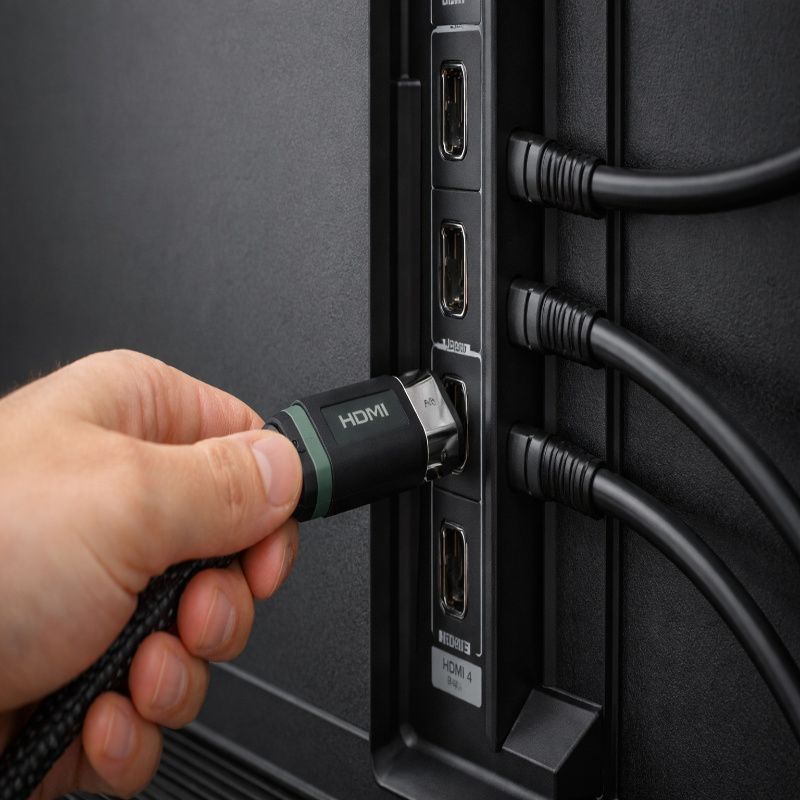
Move the console to the right HDMI port
Many TVs do not support 4K at 120Hz on every HDMI input. Some only allow it on HDMI 3 and HDMI 4. Others label the correct input as “4K 120,” “HDMI 2.1,” “Game,” or something similarly vague.
If your Xbox is plugged into the wrong port, 120Hz may never appear as an option, even though your TV technically supports it.
This is one of those fixes that feels almost too easy, which is probably why people skip it. Still, it solves more cases than you’d think.
Check Xbox display settings the right way
Now let’s look at the console itself.
On Xbox, go to:
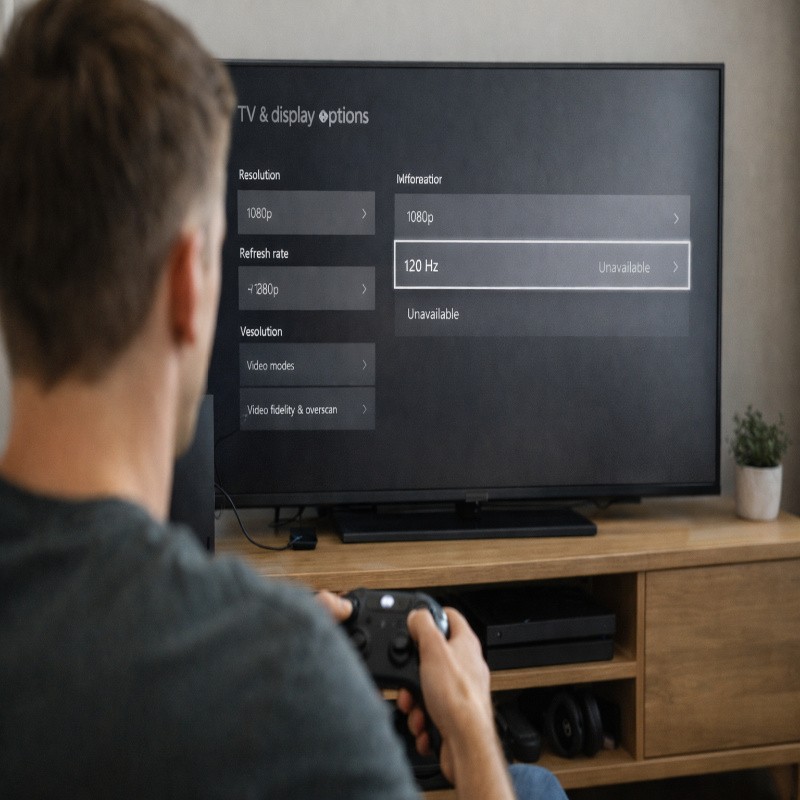
Settings > General > TV & display options
This is the main area you need. Xbox Support uses this same path for changing resolution and refresh rate, so if you’re bouncing around in other menus, come back here and start fresh.
Look at the current resolution first
If you’re set to 4K UHD and 120Hz is not available, don’t assume your display doesn’t support 120Hz at all. It may simply not support 4K at 120Hz.
Try this:
- Set the resolution to 1440p.
- Check whether 120Hz now appears under Refresh rate.
- If not, try 1080p.
This matters because a lot of monitors and some TVs can do 120Hz at lower resolutions but not at 4K. And honestly, for competitive shooters, many players prefer the smoother feel anyway.
Use “4K TV details” before you guess
Inside the same display menu, open 4K TV details. This screen tells you what the Xbox believes your display supports. It’s extremely useful because it helps separate a real hardware limit from a setup problem.
If the screen says your display supports 120Hz only at certain resolutions, believe that first. It may not be glamorous, but it’s better than fighting a limitation that isn’t actually fixable.
If you want the full performance setup after you get this sorted, our article on best Xbox Series X settings for FPS games pairs well with this one, especially if you’re deciding between 4K/60 and 1440p/120.
Turn on your TV’s gaming HDMI setting
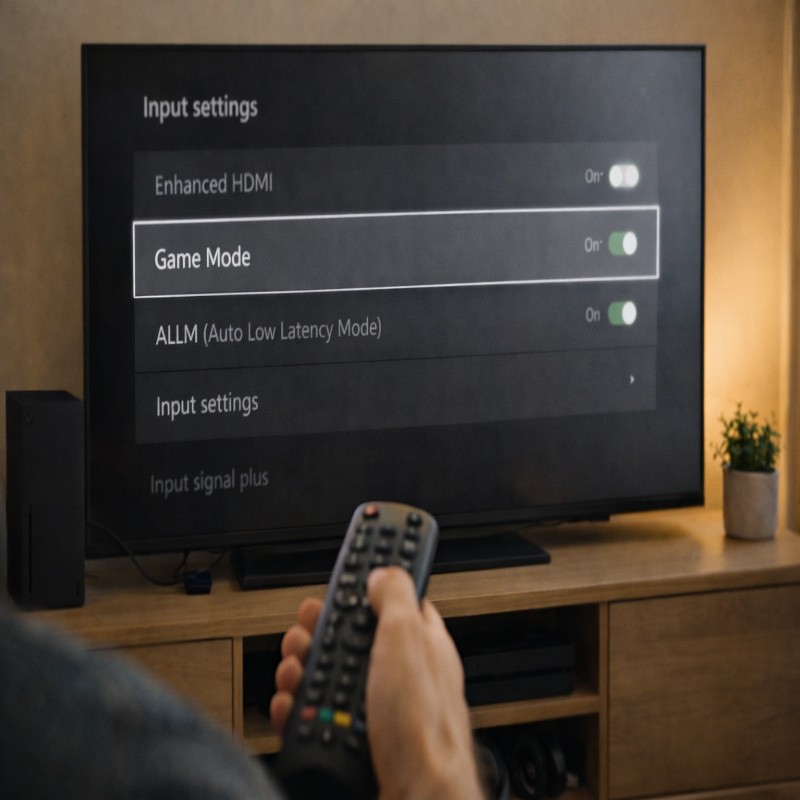
This is the part that trips up a lot of TV users. Some displays have a hidden setting that unlocks the full bandwidth or advanced features on an HDMI input. Depending on the brand, this might be called:
- HDMI Enhanced
- Enhanced format
- Input Signal Plus
- 4K Deep Color
- Game Optimizer
- HDMI Ultra HD Deep Color
The naming is inconsistent, which makes the whole thing more annoying than it should be. But the basic idea is the same: if that setting is off, the TV may cap the port and stop 120Hz from appearing.
So go into your TV’s settings, find the HDMI input your Xbox is using, and make sure any enhanced or gaming-oriented mode is enabled.
Also enable Game Mode if available
Game Mode itself is mostly about reducing image processing and cutting input lag, but on some TVs it also helps ensure the right display path is active for console gaming.
While you’re there, turn off motion smoothing. It has nothing to do with 120Hz support and can make games feel worse, not better.
Remove pass-through devices temporarily
If your Xbox is connected through a receiver, soundbar, HDMI switch, splitter, capture device, or anything else between the console and the display, remove it for testing.
Connect the Xbox directly to the TV or monitor. Then check again.
If 120Hz suddenly appears, you’ve found the problem. The pass-through device may not support the required signal, may need its own setting changed, or may support 4K but only at 60Hz.
I know direct-to-TV is not always the final setup people want, especially if they’ve built a nice home theater around a receiver. But for troubleshooting, it’s the cleanest test.
Try the HDMI override method if auto-detect fails
Sometimes the Xbox does not detect the display correctly through the standard auto-detect method. When that happens, the 120Hz option can stay hidden even if the panel is capable of it.
This is where the manual override can help.
How to use HDMI override
Go to:
Settings > General > TV & display options > Video fidelity & overscan
Then under Display, change the override from Auto-detect to HDMI.
After that:
- Go back to TV & display options.
- Set the resolution again, usually 1080p or 1440p first.
- Check whether 120Hz now appears under Refresh rate.
This fix is especially useful with certain gaming monitors that report capabilities in a way Xbox doesn’t love. It’s not the first thing I’d try, but when the obvious fixes fail, it’s one of the most practical next steps.
Just be aware that once you use manual HDMI override, some automatic detection features can behave differently. So treat it as a troubleshooting tool, not always the ideal permanent setting.
If 4K at 120Hz won’t work, try 1440p at 120Hz
This is where expectations matter a bit. Not every display that can do 120Hz can do 4K at 120Hz. And not every game benefits equally from forcing the highest possible resolution.
If your goal is competitive play, 1440p at 120Hz is often a very reasonable answer. In fact, it can be the better one. You keep the smoother refresh rate, reduce strain on the display path, and usually make troubleshooting much easier.
Try not to treat 1440p/120 as a compromise in the emotional sense. It’s more like choosing the setup that actually works well.
Make sure the game supports high frame rates too
This part is a little separate from the missing 120Hz option, but it’s still important. Even if Xbox is outputting 120Hz, a game may still run at 60fps unless its own performance mode is enabled.
Look in the game’s video settings for things like:
- Performance mode
- 120Hz mode
- High frame rate mode
For older backward-compatible titles, check whether the game supports FPS Boost on Xbox Series X. That’s a separate feature from native 120fps support, and people often blur the two together.
If VRR causes weirdness, test with it off
VRR is useful, but it can sometimes complicate troubleshooting. If you’re trying to get 120Hz working and the setup keeps flickering, dropping signal, or behaving strangely, temporarily disable VRR and test again.
That doesn’t mean VRR is bad. It just means you want to reduce variables while debugging the setup.
Once 120Hz is working consistently, then turn VRR back on and see how stable the combination is on your display.
Update both the Xbox and the display firmware
This is the kind of advice people roll their eyes at right up until it fixes the issue. Firmware really can matter here.
- Update your Xbox system software.
- Check whether your TV or monitor has a firmware update available.
- Reboot everything after updating.
Some displays received later updates that improved HDMI 2.1 behavior, VRR stability, or 120Hz compatibility. So if your setup should work on paper but doesn’t, firmware is a very reasonable thing to check.
What to do if the screen goes blank after changing refresh rate
It happens. You enable a setting, the image disappears, and now the whole process feels worse.
Usually, if the chosen mode is unsupported, Xbox will revert after a short wait. So don’t panic immediately. Give it a moment.
If the console still seems stuck, restart it and return to the display settings. In more stubborn cases, you may need to boot into low-resolution mode and reconfigure the display path from there. That’s less common, but it does happen.
A quick decision tree if you want the short version
If Xbox Series X 120Hz not showing is the only problem you’re trying to solve, here’s the fastest order I’d use:
- Use the original Xbox HDMI cable.
- Move the console to the correct HDMI port on the TV or monitor.
- Check whether the display supports 120Hz over HDMI, not just in general.
- Open Settings > General > TV & display options.
- Try 1440p, then 1080p, and check Refresh rate again.
- Open 4K TV details and see what Xbox reports.
- Enable the TV’s enhanced HDMI or gaming mode for that input.
- Disconnect all pass-through devices and test direct-to-display.
- Use HDMI override if auto-detect still fails.
- Update firmware on both the Xbox and the display.
That order is not fancy, but it works because it moves from easiest checks to the more technical ones without wasting time.
When the answer is simply “this display can’t do that combination”
This is the part nobody likes, but it’s worth saying clearly. Sometimes the issue is not a bug. Sometimes the display just cannot do the combination you want.
For example:
- It may support 4K at 60Hz and 1080p at 120Hz, but not 4K at 120Hz.
- It may support 120Hz on only one HDMI input.
- It may support VRR at one resolution but not another.
In those cases, the “fix” is really choosing the best supported mode rather than forcing the unsupported one. I know that feels a little anticlimactic, but a stable 1440p/120 setup is far better than endlessly chasing 4K/120 on hardware that won’t cooperate.
Conclusion
If your Xbox Series X 120Hz not showing issue is driving you in circles, the good news is that the cause is usually predictable: wrong HDMI port, incorrect TV settings, a bandwidth bottleneck, or a display that supports 120Hz only at lower resolutions.
Start with the basics, test one variable at a time, and use Xbox’s own display menus to confirm what the console actually sees. Once 120Hz appears and works properly, head back to our full How to Set Up Xbox Series X for FPS Games guide so you can finish the rest of the setup properly, including controller tuning, VRR, and audio.